







Contact us with email
How can we help you?






By NaProxy
2024-11-22 14:16Registration and Login Tutorial
Registration Steps:
1. First, click to enter NaProxy website.Click on the upper right corner or click here to register.
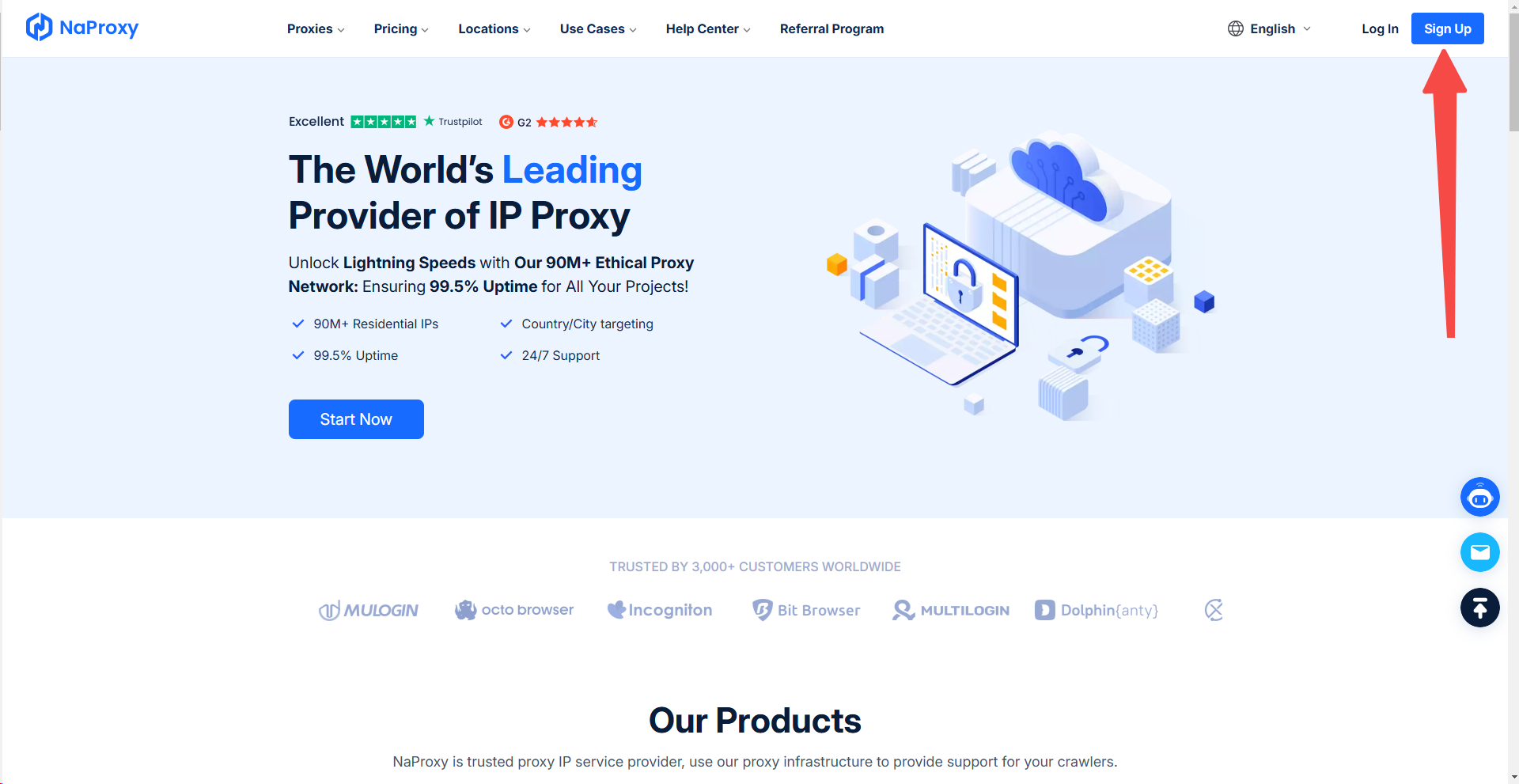
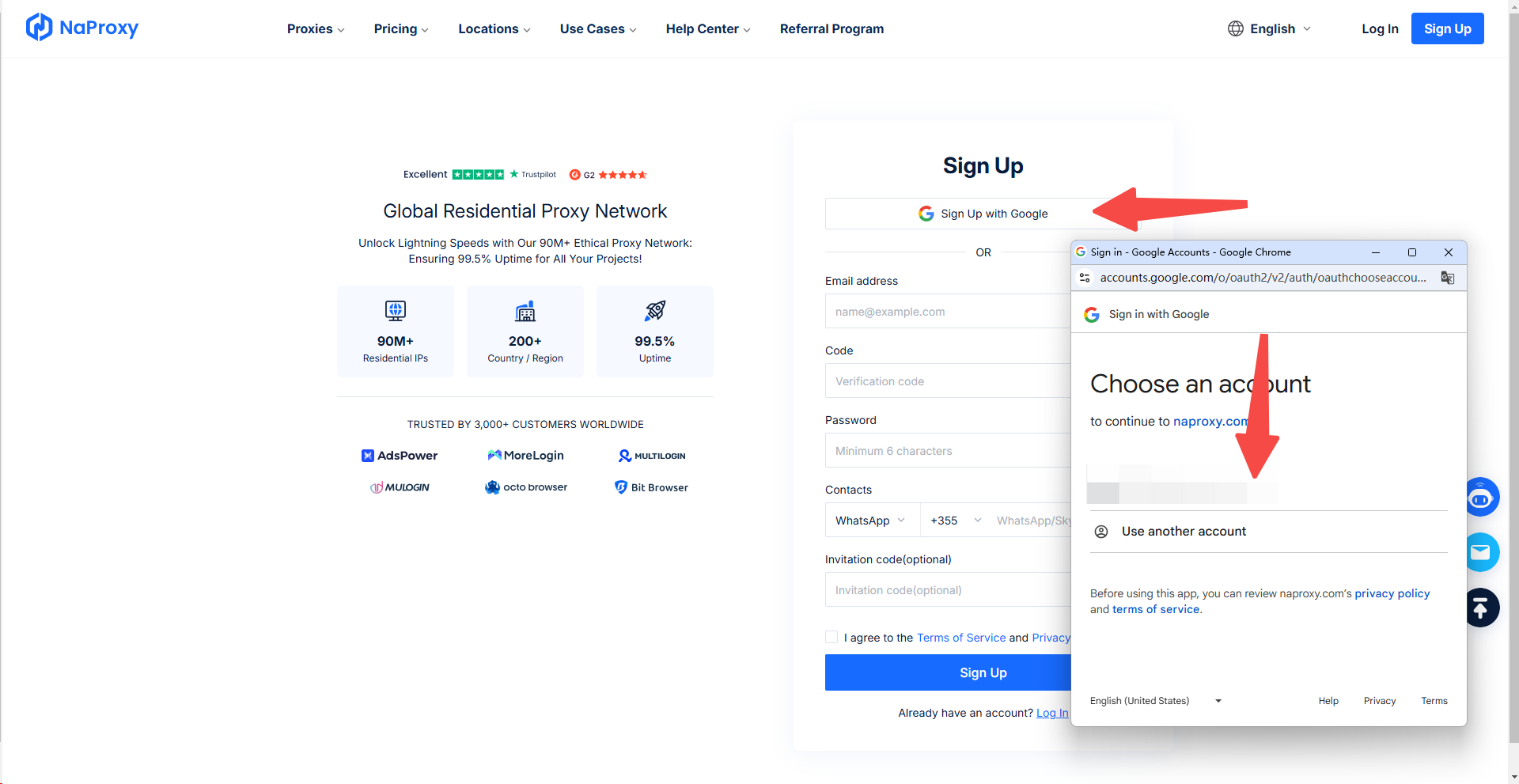
2. Method 1: Sign up with a Google account
Click on "Sign Up with Google", click on the pop-up window to select the Google account you need to register, enter your contact information again and click on Register, and then click Next. The registration is successful.
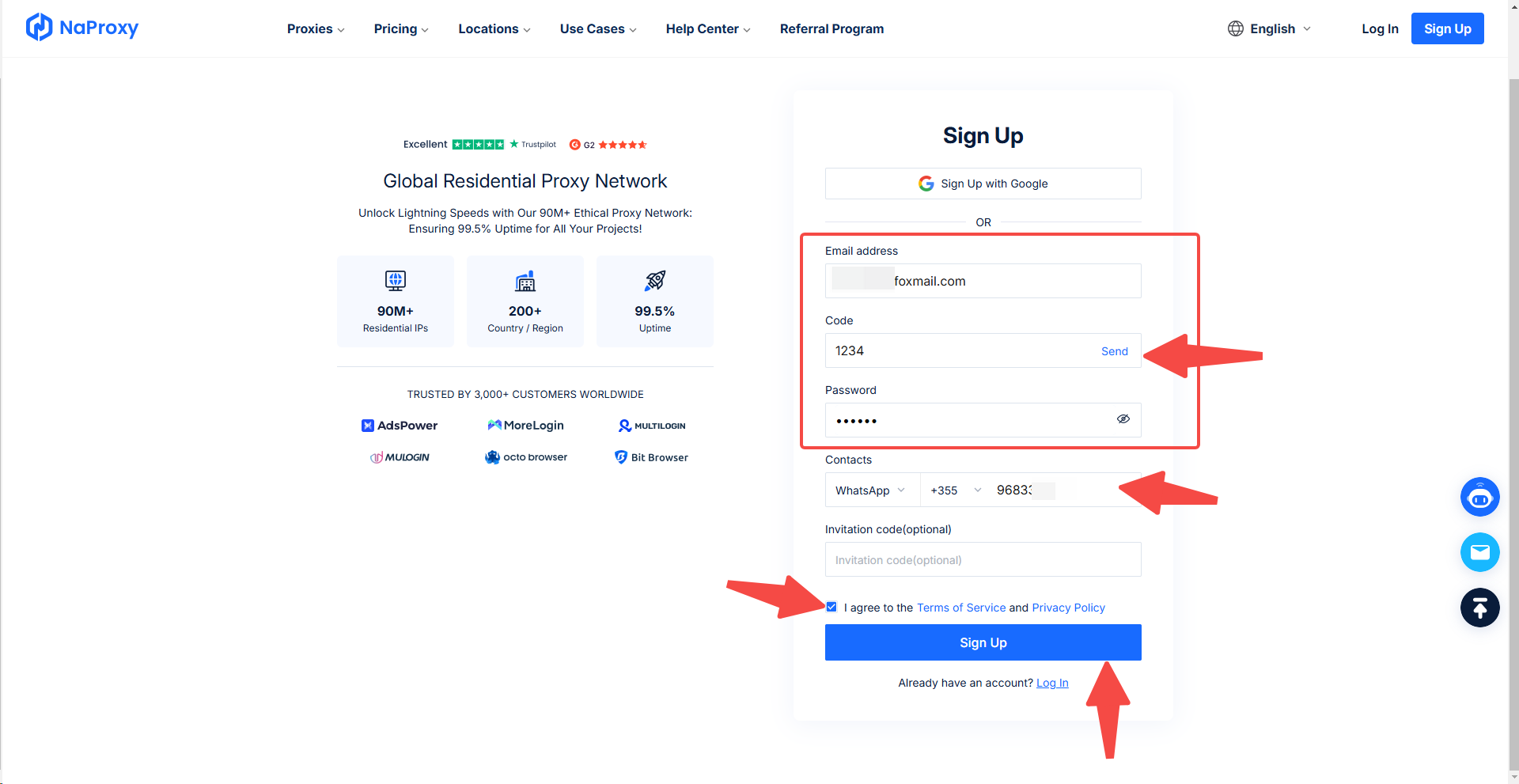
Method 2: Sign up with an email address
1) Enter the email address you wish to register with, then click "Send" to get the verification code and fill it in.
2) Then set a password (minimum 6 characters) and enter your contact information.
3) If you have an invitation code, enter it in the Invitation Code box.
4) Then check the box "I agree to the Terms of Service and Privacy Policy "and finally click "Sign Up" to register successfully.
Login Steps:
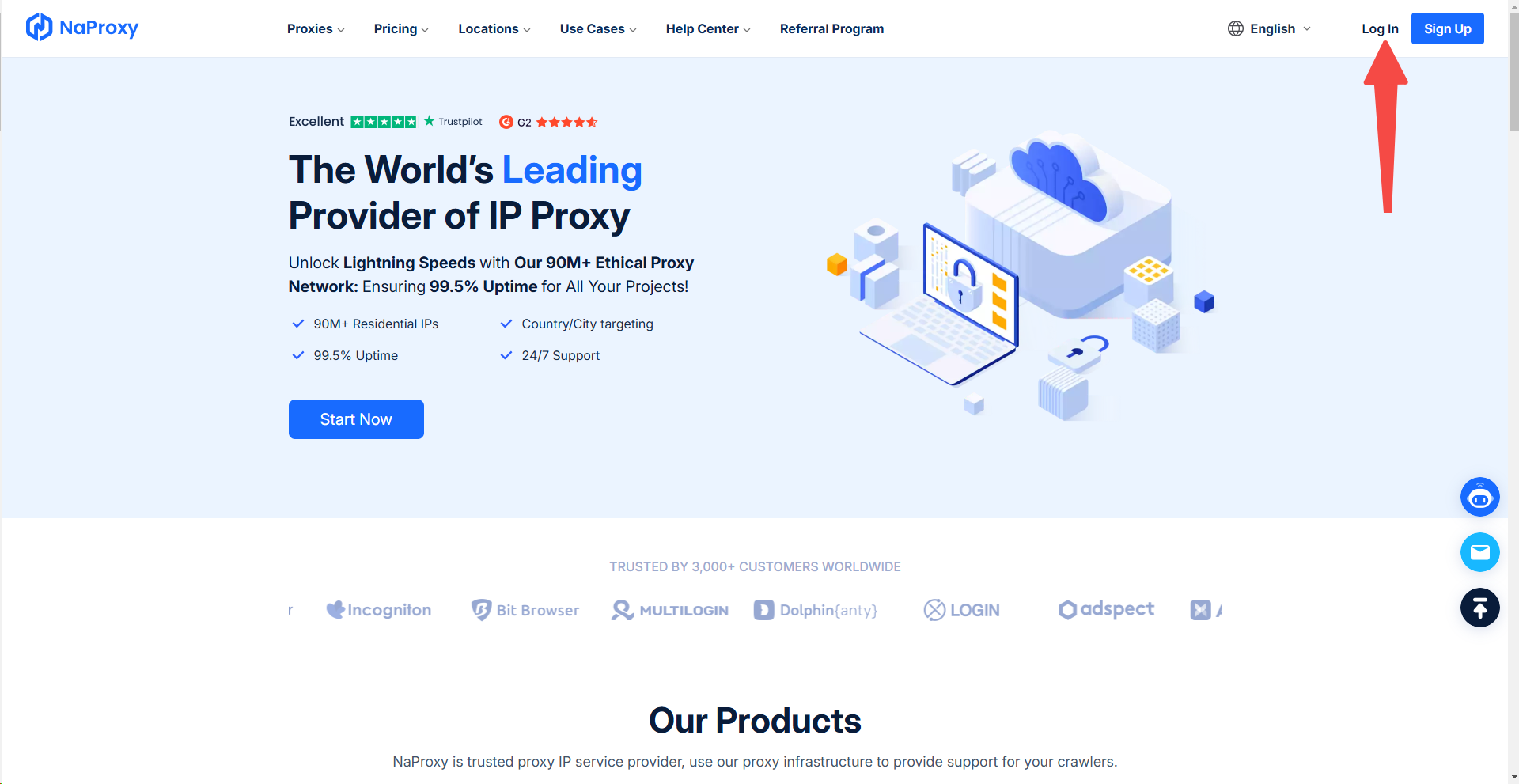
1、Back NaProxy Website and click "Log In" in the upper right corner or click here to log in.
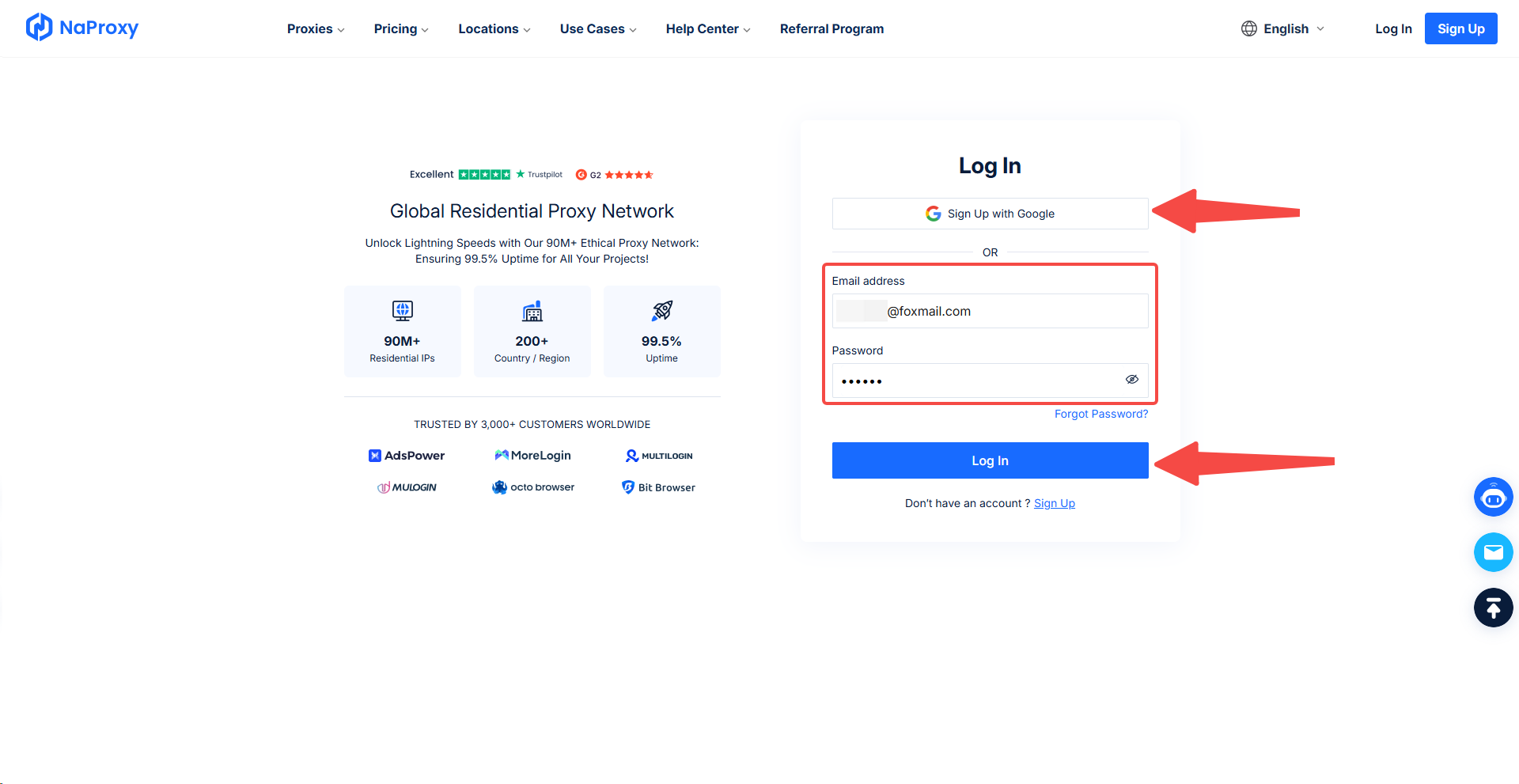
2、Then click "Sign Up with Google" or enter your registered email address and password. Then click on "Log In" below and you will be logged in successfully.
Retrieve password Steps:
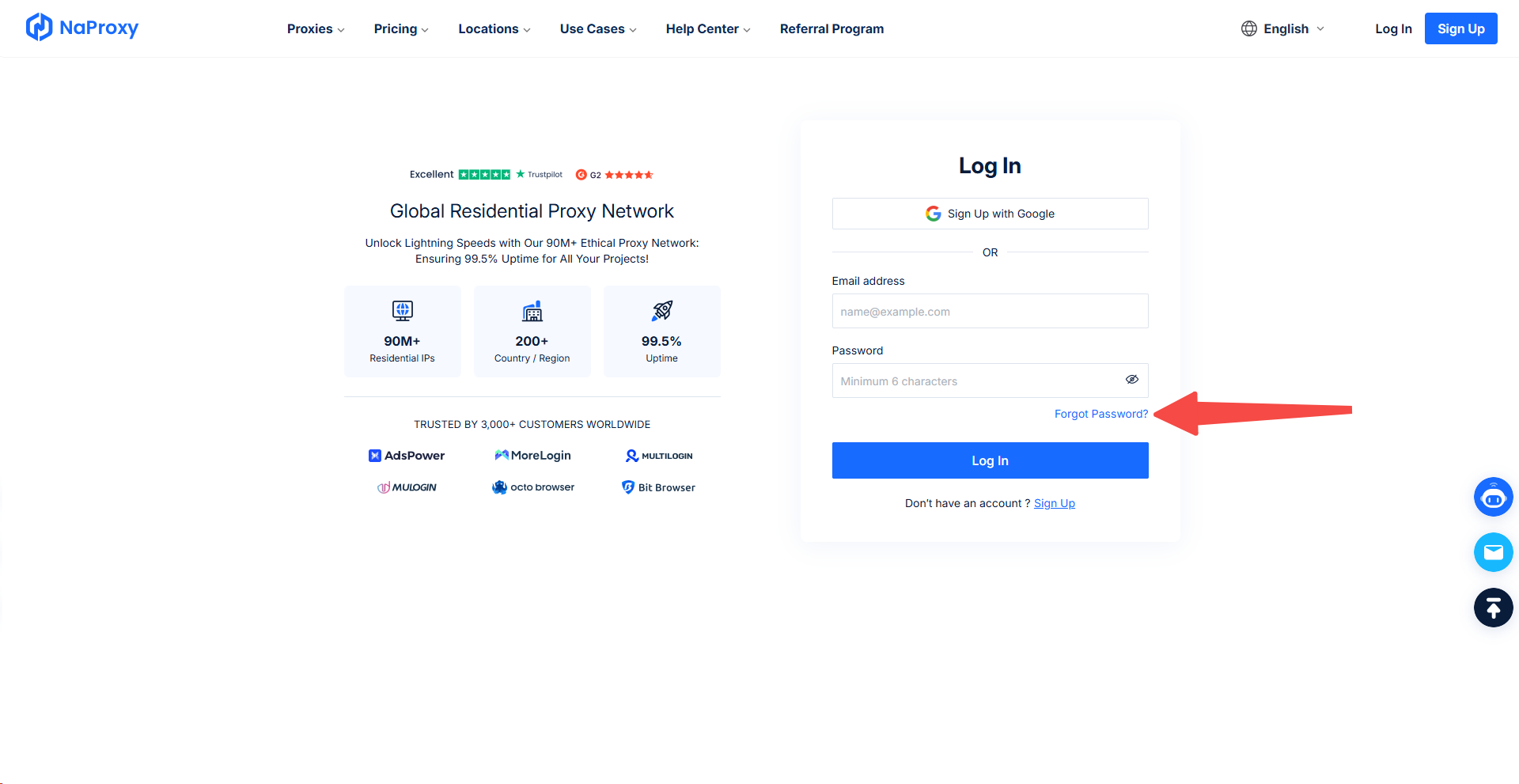
1. First, click to enter NaProxy website, click "Log In" in the upper right corner or click here here. Then click "Forgot Password? "
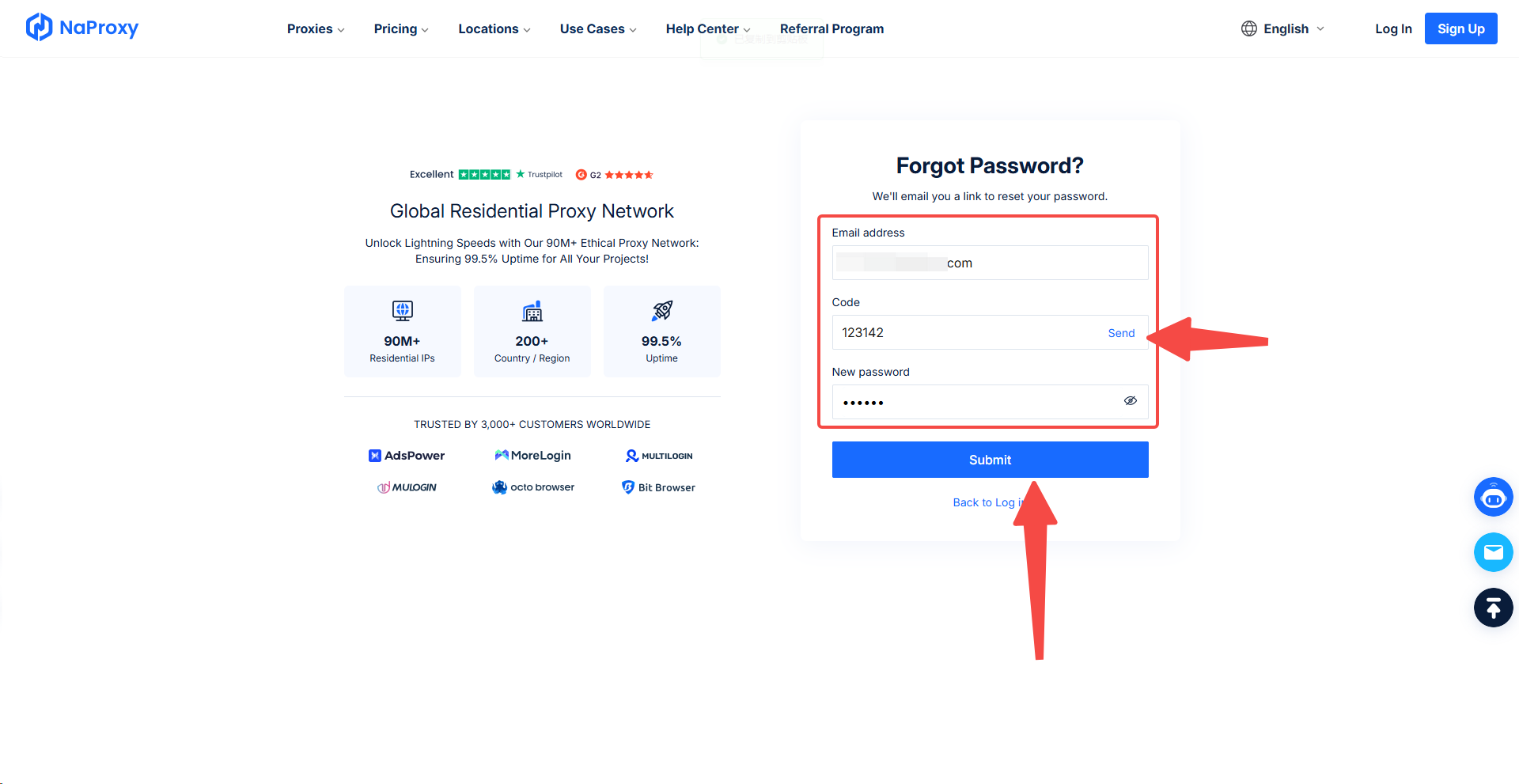
2. Enter the e-mail address you need to reset, then click "Send" to get the verification code and fill in the box. Then set a new password (at least 6 characters) and click Submit below to retrieve it successfully.
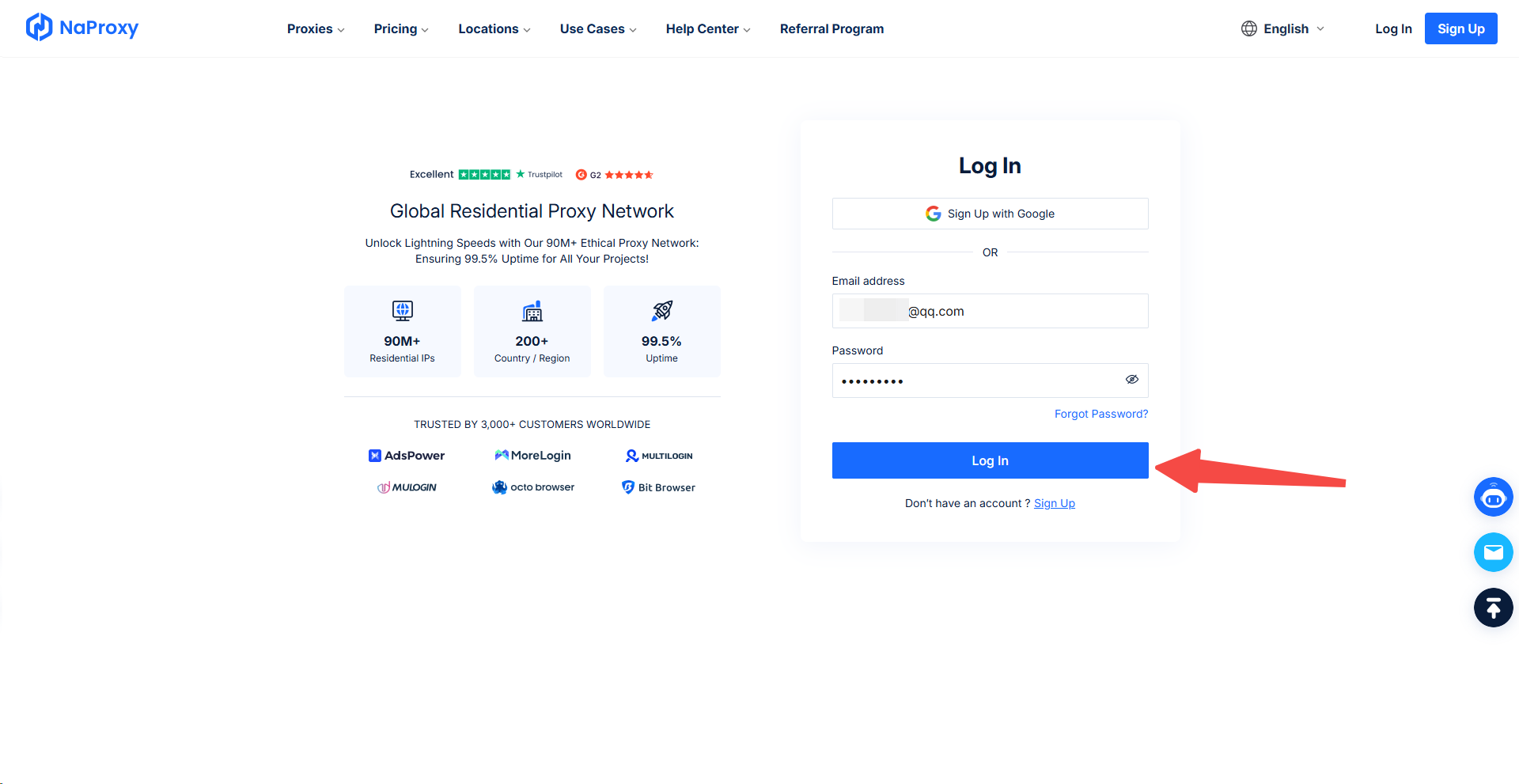
3. You will be redirected to the Log In interface, click on Log In below.
Change Password Steps:
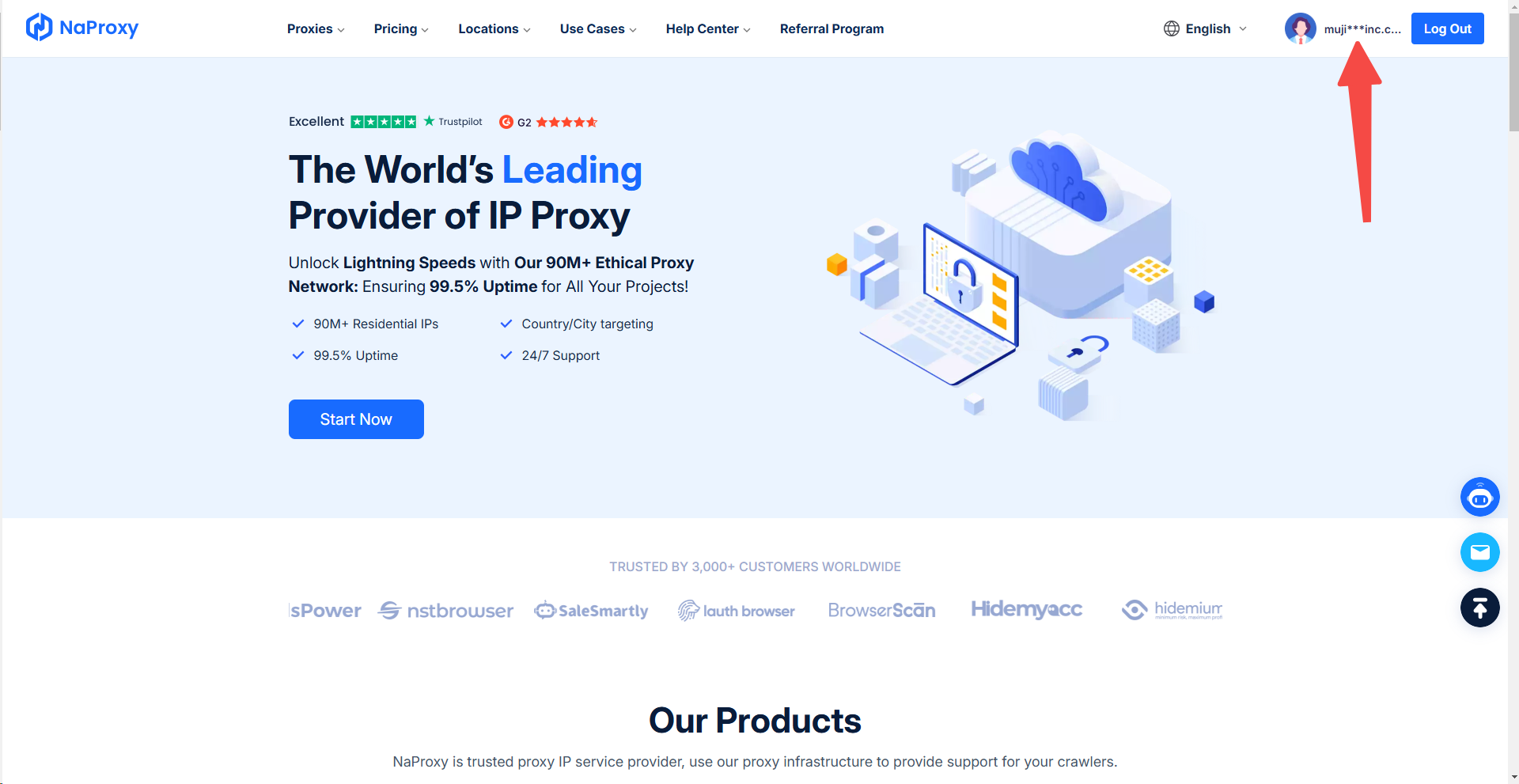
1. Login and click Official website email address in the upper right corner, and then click "Account" interface.
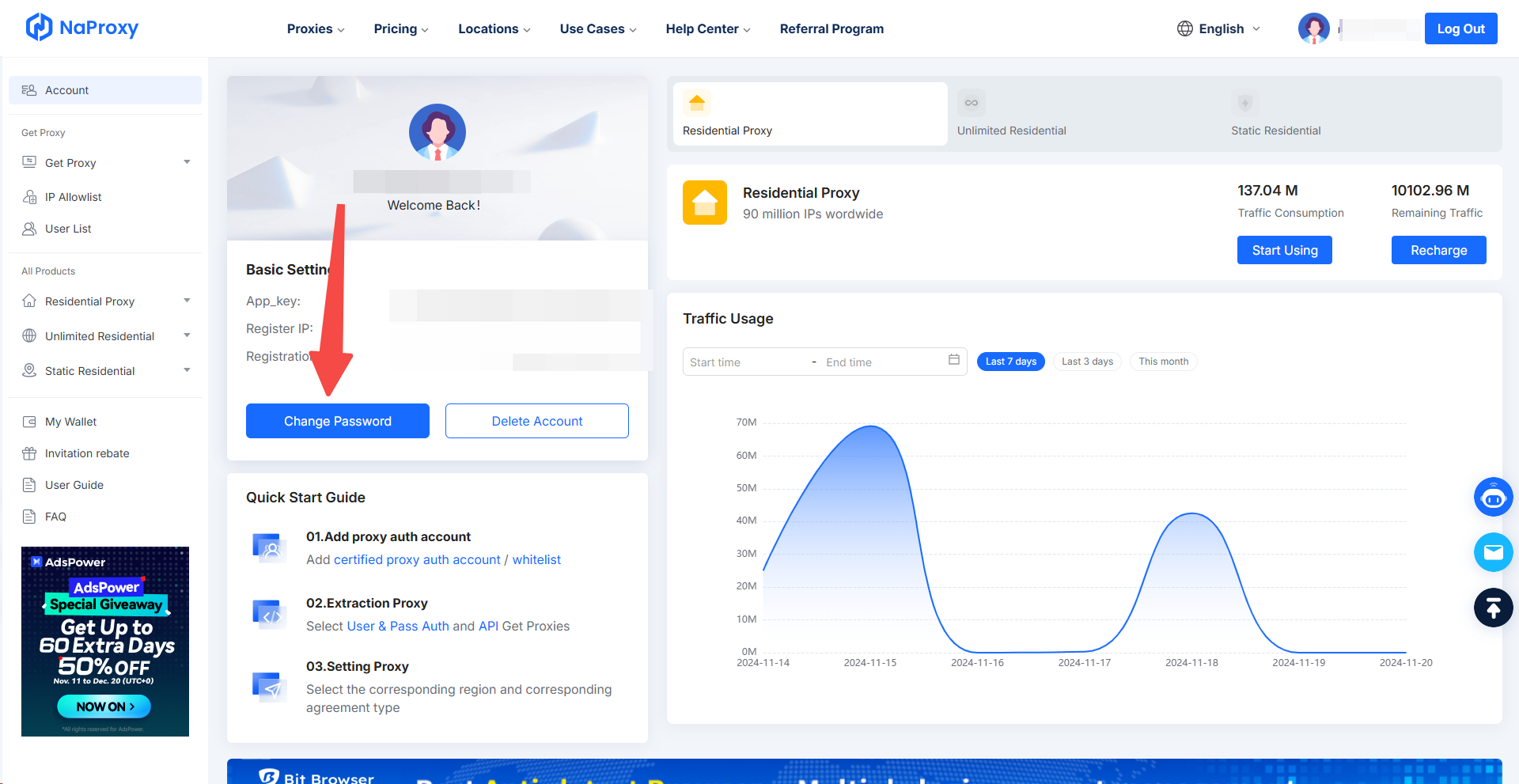
2. Click "Change Password" underneath your username.
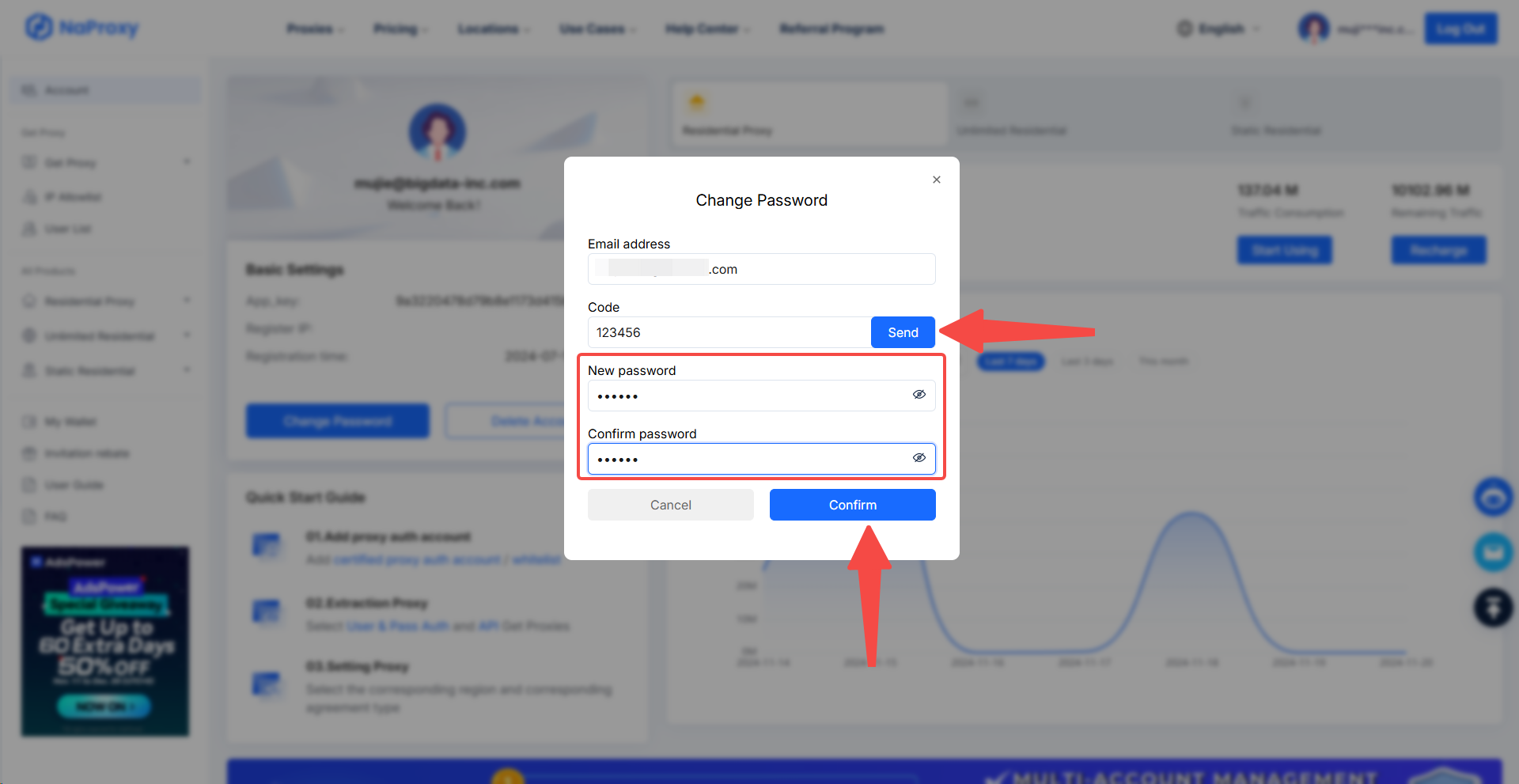
3. Click "Send" in the pop-up window to get the verification code and enter it into the box, then set a new password and confirm the password (at least 6 characters), and finally click "Confirm" that the modification is successful.

With our robust data collection infrastructure, you can enjoy stable IP connections and reduced interruptions, ensuring smooth and efficient web crawling.


