







Hubungi kami melalui email
Apa yang bisa kami bantu?






By NaProxy
2024-11-20 16:14Before configuring the proxy, please purchase a proxy first [Residential Proxy Purchase Tutorial], and extract the IP address [IP Address Extraction Tutorial].
Here is an example of an IP extracted using Rotating Residential Proxies.
VMLogin Browser: https://vmlogin.com
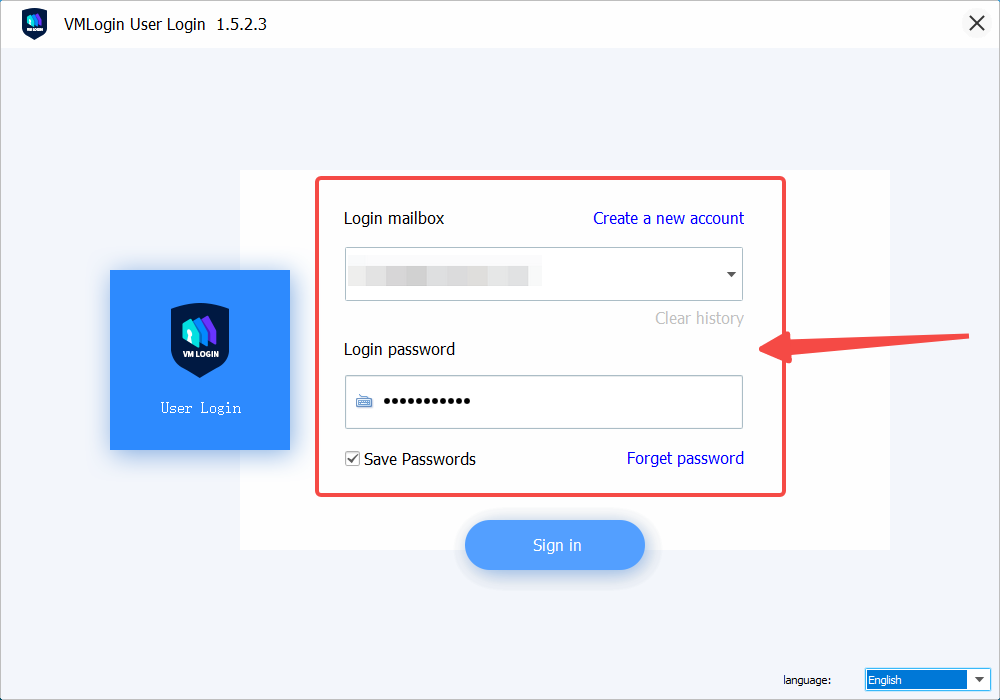
1. Click here to download and install VMLogin Antidetect Browser, open the VMLogin Antidetect Browser website and register to log in the software.
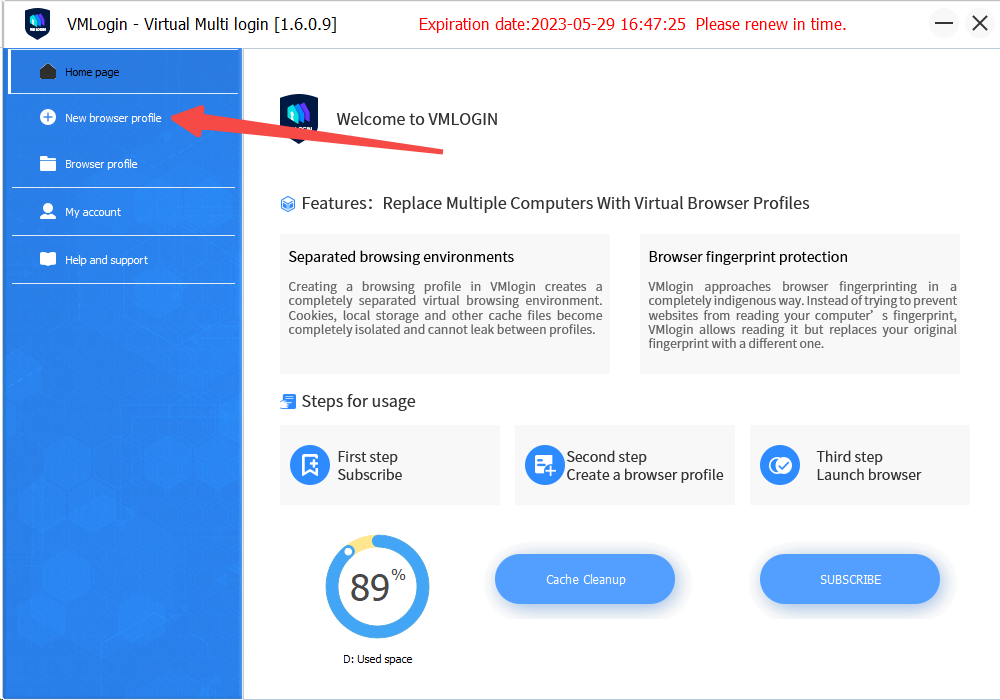
2. Click here "New Browser Profile" to create a new browser profile.
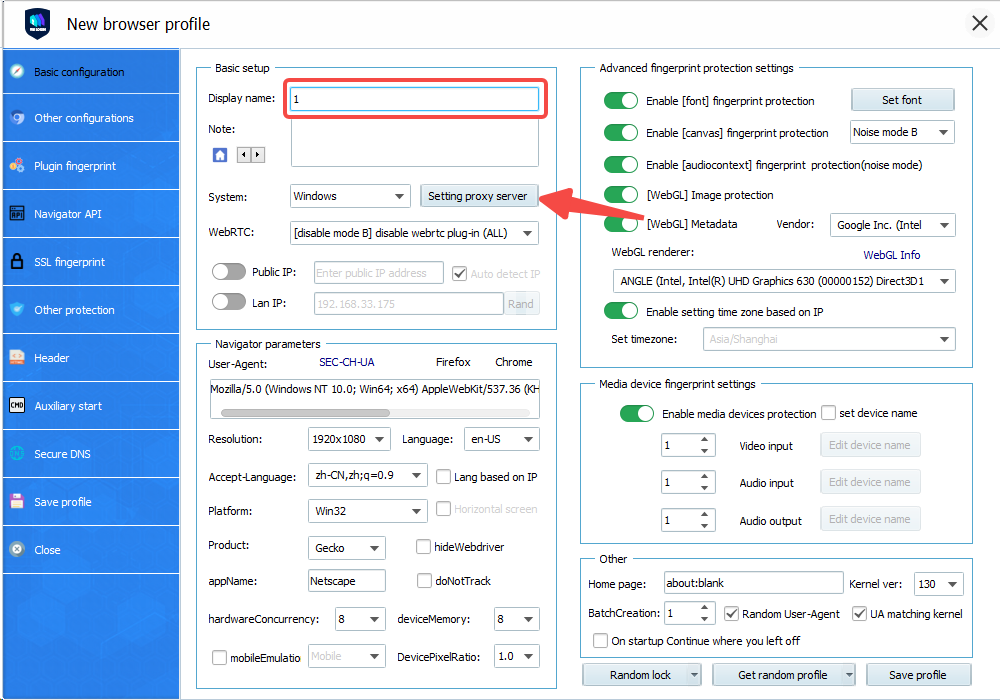
3. Create a "Display Name" and click "Set Proxy Service".
4. Check the "Enable Proxy Service" box above, select "HTTP Proxy" for the Proxy Type, and paste the copied IP address and port in the "IP Address" box.
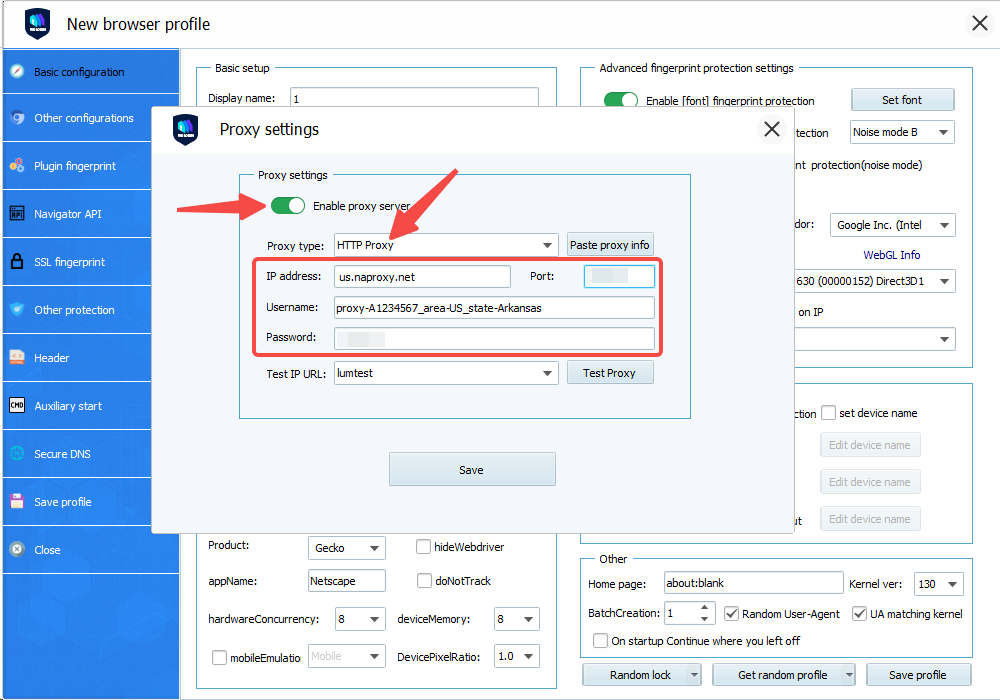
5. After the paste is completed, select "ip-ipa" in the test URL, and then click "Test Proxies".
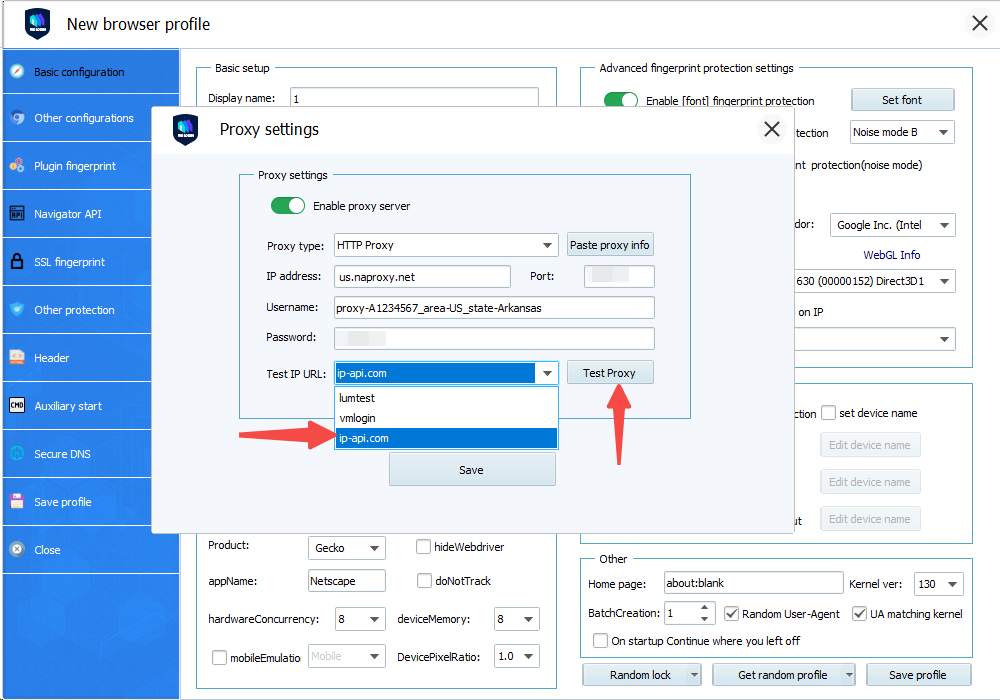
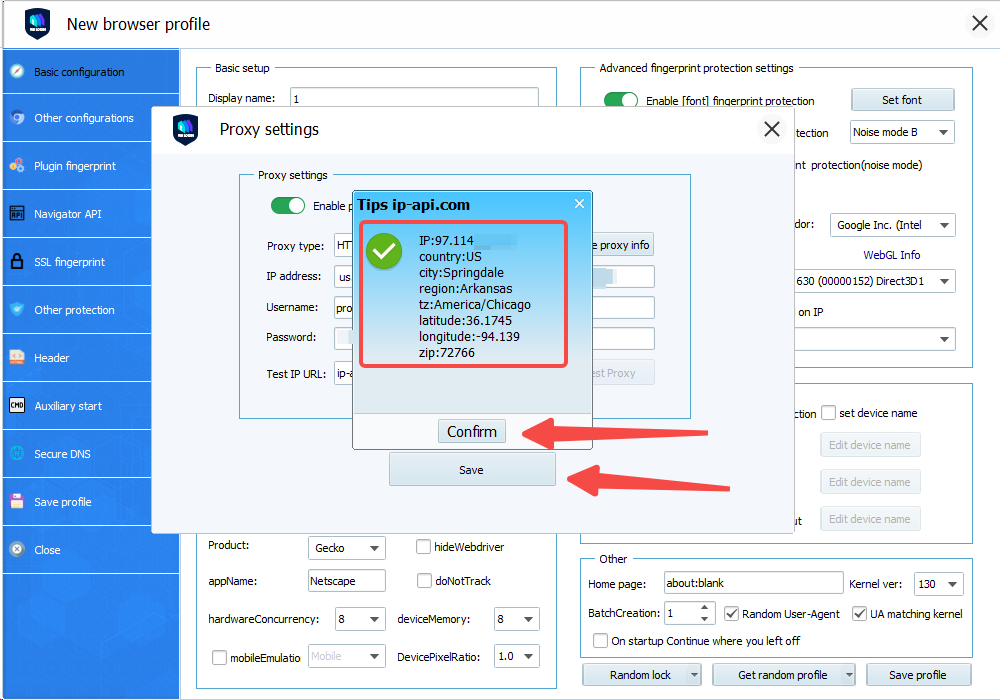
6. The detection interface appears as the IP address of the Proxy Service. The proxy server has been successfully created. Click OK and then click Save Settings.
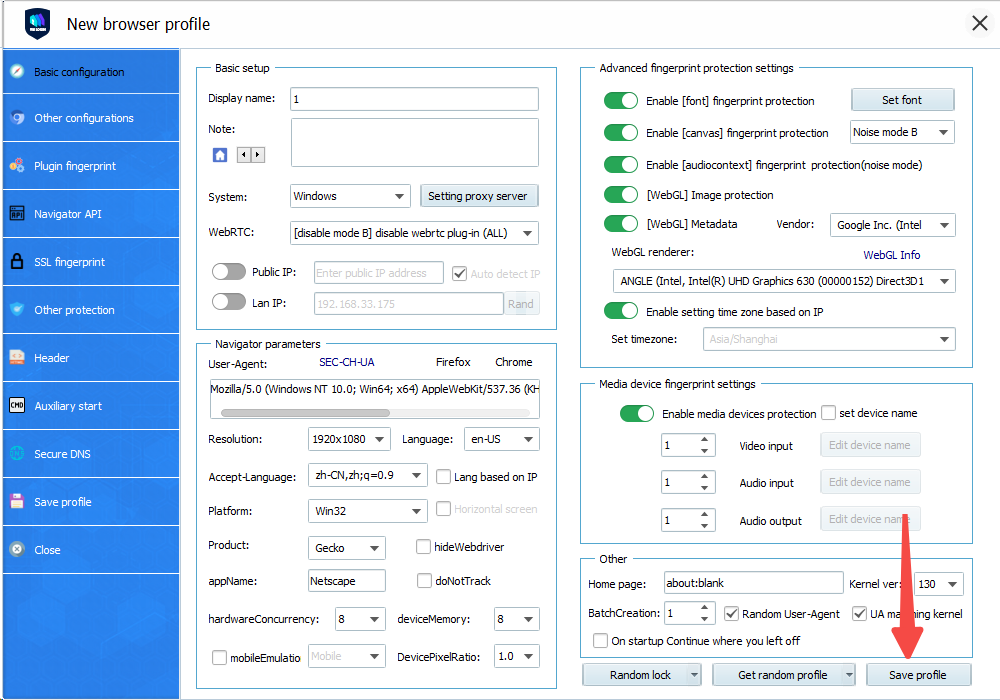
7. Then click "Save Configuration" below.
8. Open the configured Antidetect Browser, visit the IP address detection website, and confirm that the displayed IP address has been changed to the IP address of the Proxy Service. Also visit other websites for Web Testing to ensure that the connection is normal and error-free.

Dengan infrastruktur pengumpulan data kami, pembatasan IP dan CAPTCHA tidak akan membatasi web crawling gratis Anda.


